
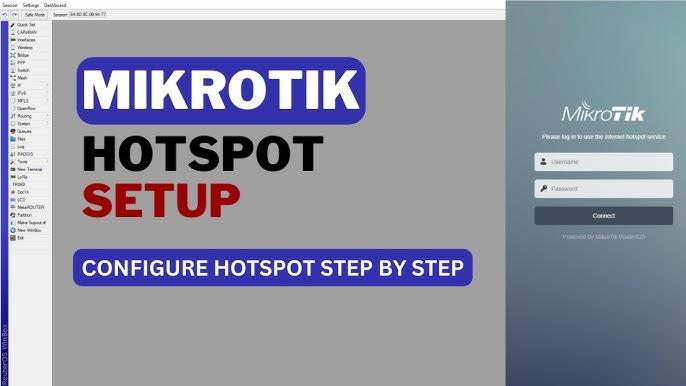
MikroTik Hotspot Setup (Full Step-by-Step Guide)
Below is the complete MikroTik Hotspot setup process, broken into simple steps to help you deploy a stable and secure public WiFi hotspot.
Step 1 — Prepare Your Router & Interface
Before running the Hotspot Setup Wizard, make sure:
- Your router has internet access
- A bridge or interface is dedicated to hotspot users
- DHCP server is enabled on that interface
- Your MikroTik firmware is updated
Recommended Example Setup:
- Hotspot Interface: bridge-hotspot
- Hotspot IP Network: 10.5.50.1/24
- DHCP Pool: 10.5.50.2 – 10.5.50.200
- DNS Servers: 8.8.8.8 and 8.8.4.4


Step 2 — Run the Hotspot Setup Wizard
Go to the hotspot configuration menu inside your router dashboard. The wizard will help you select your interface, set an IP, choose the address pool, configure DNS, and create the initial hotspot login files.
- Select your hotspot interface
- Assign a local IP address
- Set the DHCP address pool
- Leave SMTP at zero
- Choose DNS servers
- Optionally set a DNS name
- Create the hotspot admin account
Once completed, the hotspot becomes active.
Step 3 — Configure User Profiles
Inside the user profile menu, you can define how many devices can log in, apply speed limits, and control session behavior.
- Shared Users: recommended to keep at 1
- Rate Limit: optional speed limit
- Session Timeout: optional
- Transparent Proxy: optional
These settings improve security and bandwidth distribution.
Step 4 — Configure Hotspot Login Methods
Choose how users sign in on the login page by adjusting the login options inside the server profile menu.
- Enable HTTP-based login
- Enable HTTPS optionally
- Use MAC-based login cookies if needed
- Enable trial access for timed free browsing
- Enable external authentication if using a Radius platform
These settings determine the user authentication flow.
Step 5 — Add Walled Garden Rules (Optional)
Walled Garden allows users to open specific sites before login, such as splash pages, branding, or social login pages. This helps your portal load correctly even before authentication.
- Your external login portal
- Your branding site
- Social login providers
- CDN and style resources
Add the necessary domains to ensure your pages load smoothly during the login process.

Step 6 — Customize the Login Page
You can customize your hotspot login page design by editing the login file inside the hotspot folder. Personalize elements such as your logo, page colors, text, or buttons. Many hotspot owners use a branded login page or an external splash portal.
- Replace the default logo
- Adjust layout and colors
- Add promotional images
- Design your own call-to-action buttons
Step 7 — Enable Radius (If Using External Server)
Radius integration provides advanced authentication and accounting features. Add your Radius server information inside the router's Radius settings menu and link the hotspot profile to it.
- Radius Server Address
- Shared Secret Key
- Service Type: hotspot
- Authentication and Accounting Ports
After adding the server, enable Radius usage inside your hotspot profile.
Step 8 — Test the Hotspot
Connect with a device and confirm:
- The login page loads correctly
- Pages redirect properly
- DNS resolution works
- User login works
- Speed limits apply correctly
Common Problems & Fixes
Login page not showing: Check DNS, DHCP, and firewall NAT rules.
Redirect loops: Verify DNS name and allowed domains.
External page not loading: Add your domain to the Walled Garden.
Radius not responding: Recheck ports, secret key, and firewall rules.
Conclusion
Your MikroTik hotspot is now fully operational with login control, user management, and optional external authentication. You can expand your setup with splash pages, ads, vouchers, user tracking, branding, and WiFi marketing.
WiFiBusinez provides tools, templates, and tutorials to help you build a professional hotspot solution.
